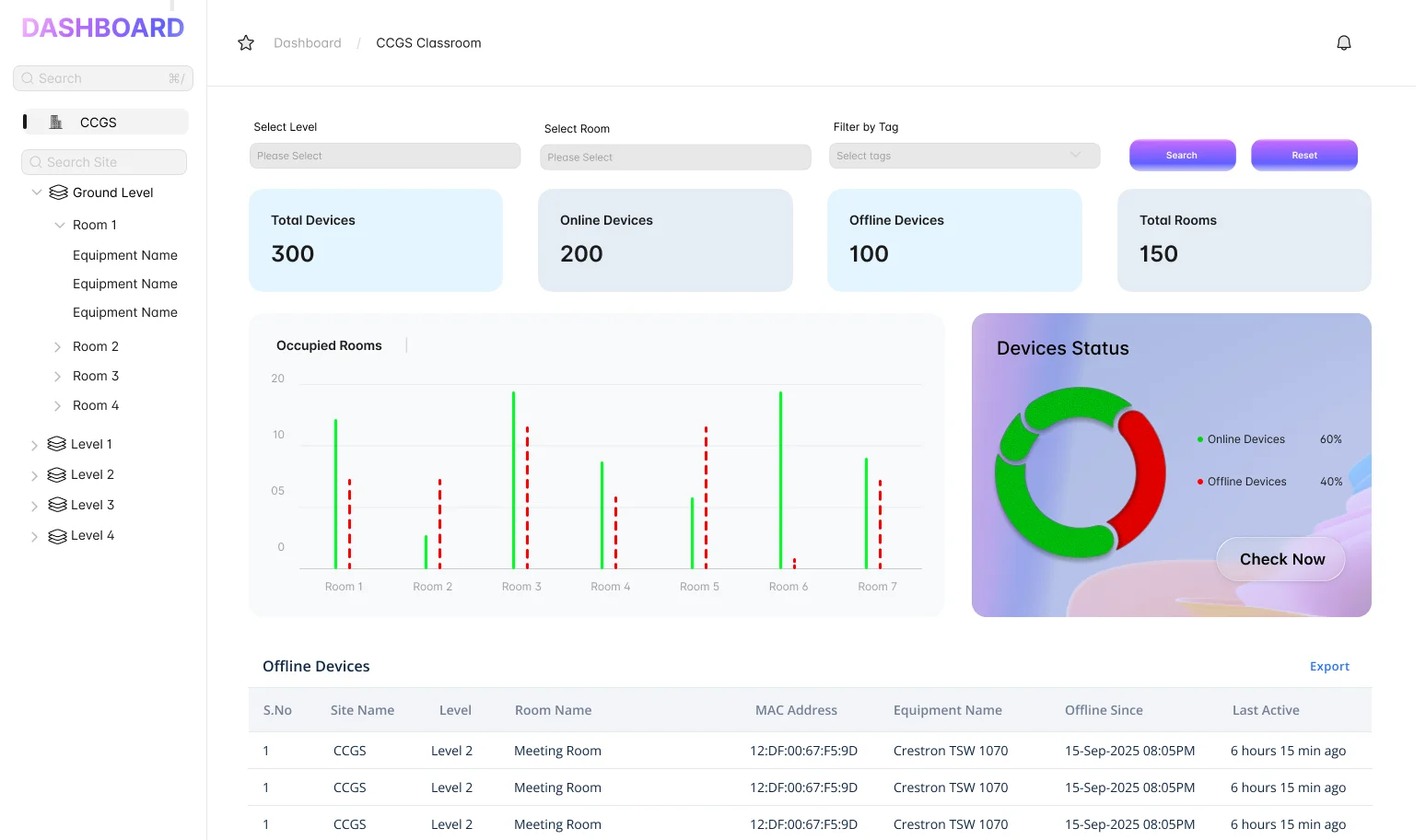
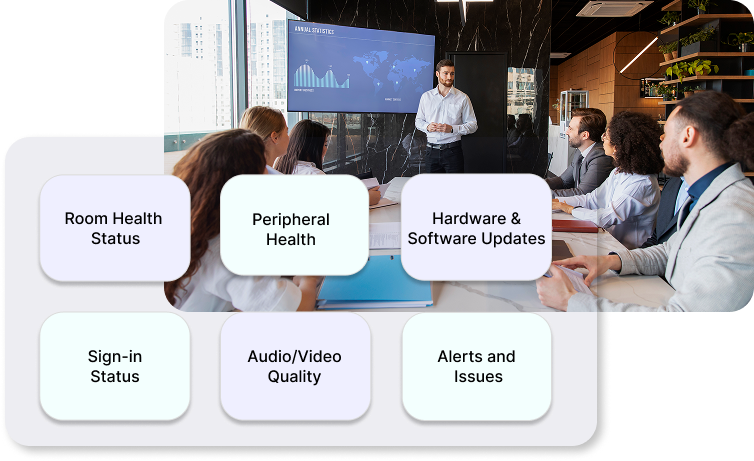

The Microsoft Teams Rooms Pro Management Portal is excellent at what it does — managing certified MTR hardware. But it was never designed to monitor the DSPs, displays, cameras, processors and AV signal chain that make up the rest of your meeting room. That's where AVM-360 starts.
Teams Pro Portal and AVM-360 are not competitors. They see different parts of the same room.
Designed to manage certified MTR hardware and its directly-connected peripherals. Excellent for what it does — but the scope is the MTR stack, not the full room.
AVM-360 sees the whole room — every device in the AV signal chain, not just the compute.
Scroll through the full picture. Green means monitored. Red means not.
| Monitoring Capability | Teams Pro Portal | AVM-360 |
|---|---|---|
| MTR Compute & Software | ||
| MTR compute online / offlineWindows or Android compute module | ✓ | ✓ |
| Teams Rooms app version & healthApp crash detection, update state | ✓ | ✓ |
| Firmware & OS update managementAutomated push to certified devices | ✓ | AVM-360 tracks versions, Teams pushes |
| Call quality — MOS scores, jitter, packet lossPer-meeting audio/video quality data | ✓ | ✓ via Teams Pro Portal integration |
| Certified USB Peripherals | ||
| USB camera — connected or disconnectedCertified Teams camera | ✓ | ✓ |
| USB microphone/speakerbar statusCertified Teams audio peripherals | ✓ | ✓ |
| USB peripheral firmware updatesPush updates to certified devices | ✓ | Version tracked, updates via Teams |
| Displays & Screens | ||
| Display signal detected (HDMI present/absent)Does the MTR compute see a display? | ✓ | ✓ |
| Display power state (on / standby)Is the display actually switched on? | ✗ | ✓ via CEC or Samsung MDC / LG API |
| Display input sourceIs it on the correct HDMI input? | ✗ | ✓ |
| Panel temperature & error flagsOverheating warnings before failure | ✗ | ✓ networked displays |
| Display usage hours & firmwareAsset lifecycle visibility | ✗ | ✓ networked displays |
| Non-networked display controlDisplay connected via HDMI only — no IP | ✗ | ✓ HDMI-CEC power on/off & input control |
| Audio Processing & Microphones | ||
| DSP health — QSC Core, Biamp TesiraAudio processor temp, fan, signal status | ✗ | ✓ |
| Ceiling / table mic status through DSPSennheiser, Shure, Biamp ceiling mics | ✗ | ✓ |
| Audio routing & mute stateIs audio flowing correctly through the room? | ✗ | ✓ |
| Cameras & Video | ||
| PTZ camera telemetry & stream healthAver, Poly, Cisco PTZ cameras | ✗ | ✓ |
| Camera firmware versionAsset and compliance tracking | ✗ | ✓ |
| Projectors | ||
| Projector lamp / light source hoursKnow before the lamp fails mid-meeting | ✗ | ✓ |
| Projector temperature & overheat alertsEpson, Panasonic, Sony laser projectors | ✗ | ✓ |
| Network & Infrastructure | ||
| MTR compute network qualityLatency, packet loss to Microsoft 365 | ✓ | ✓ |
| Managed switch per-port PoE & errorsNetgear, Cisco, HP switches powering the room | ✗ | ✓ |
| Platform & Deployment | ||
| Teams-only estate managementMicrosoft ecosystem only | ✓ | Teams + Zoom + any mix |
| Cloud or on-premise deploymentData stays in your network if needed | ✗ Cloud only | ✓ Both |
| White-label portal for MSPs & integratorsYour brand, your clients | ✗ | ✓ |
| Ticketing integration — ServiceNow, Jira, Zendesk | ServiceNow only (Pro+) | ✓ All three |
| Teams Pro Portal is authoritative for the MTR compute and certified peripherals. AVM-360 adds visibility to everything else in the room. | ||
A modern enterprise Teams Room has 8–12 distinct devices. Teams Pro Portal manages one of them deeply. AVM-360 sees all of them.
Windows or Android compute module running Teams Rooms
Teams + AVM-360Camera, mic, speakerbar directly USB-connected to MTR
Teams + AVM-360Usually HDMI-only. Power state, input, temp invisible to Teams
AVM-360 onlyQSC Core, Biamp Tesira handling room audio routing
AVM-360 onlySennheiser, Shure, Biamp mics connected through a DSP
AVM-360 onlyAver, Poly, Cisco PTZ — stream health, position, firmware
AVM-360 onlyLamp hours, temperature alerts, power state
AVM-360 onlyPoE switch powering every device in the room
AVM-360 onlyMost commercial displays in Teams Rooms connect via HDMI only — no IP, no network port, no visibility. AVM-360 uses HDMI-CEC to reach them anyway.
Know whether the display is actually on or in standby — not just whether the HDMI signal is present at the MTR.
Power the display on before a meeting starts, or off at end-of-day — without touching the display or the MTR compute.
Confirm or force the correct HDMI input — eliminating the "screen is on HDMI 2 instead of HDMI 1" helpdesk call.
Automated power-off routines reduce idle energy consumption. No display needs to stay on overnight or between bookings.
Supported via CEC:
For full telemetry (temperature, usage hours, firmware), connect the display to the network and AVM-360 uses Samsung MDC or LG LAN protocols to pull deeper data.
Whether you're already on Teams Rooms Pro licensing, running basic Teams, or managing a mixed environment — AVM-360 fits in without requiring you to change anything.
Teams Pro Portal manages the certified MTR stack. AVM-360 fills in everything else — displays, DSPs, cameras, projectors, switches. Together you see the full room, not just the compute.
On standard Teams licensing and not using the Pro Management Portal? AVM-360 gives you complete AV estate visibility from day one — no additional Microsoft licensing required.
Manage Teams Rooms across multiple client sites from a single white-labelled dashboard. Your brand, your clients — regardless of what Microsoft licensing each client holds.
Not just online/offline — actual telemetry from inside each device in the Teams Room.
30-day free trial. Full access. Our team handles the setup. No credit card required.
Set up in under 24 hours · Works alongside Teams Pro Portal · Cancel anytime


Monitor Everything. Whether it’s Crestron, Poly, Logitech, or Yealink, AVM-360 treats them all as first-class citizens.

Beyond the Basics. We don't just see "Online/Offline." We pull deep logs for peripherals, call quality, and system health.

Fix it Before They Call. Automated alerts for disconnected mics, camera failures, or "hidden" PC crashes.
Our signature Honeycomb Fault Grid gives your help desk a real-time, color-coded map of every room.

See exactly which component is failing (Camera, Mic, or Console).

Drill down from Global regions to specific floors and rooms in two clicks.

Use Generative AI to analyze fault logs and get step-by-step troubleshooting steps immediately.
AVM-360 doesn’t just skim the surface. We integrate directly with the Microsoft Teams ecosystem to pull critical information

Real-time health of USB-connected cameras, speakers, and HID devices.

Access device-specific logs for rapid post-incident analysis without needing an on-site technician.

Execute remote reboots, firmware updates, and configuration changes from a single dashboard.

Join the companies moving from "Break-Fix" to "Proactive Management."
We use necessary cookies to keep our site working, and optional analytics cookies to understand how you use it. Read our Privacy Policy for details.
We use cookies to ensure our website functions correctly and to understand how visitors use it. Choose which categories you're comfortable with. Strictly necessary cookies cannot be disabled as they are required for the site to work. See our Privacy Policy and GDPR Policy for full details.
AVM-360 transformed how we manage our 800+ Teams Rooms globally. We reduced field visits by 40% because we finally had the data to fix issues remotely."